Creating an Adjusted Value
You can add adjusted values on a case-by-Case basis. Some scenarios for using an adjustment in a Sigmafine analysis are:
- Adjusting a measured value – You decide to make an adjustment on a measured value if the instrument measurement is faulty or if a better (more accurate) measurement is available.
- Adjusting a measurement tolerance – The tolerance on a measurement affects its weighting in Sigmafine Reconciliations. If an instrument needs to have less weight (known faulty) or more weight (more confident in the value), then you can make an adjustment.
- Adjusting an in-service status – You can adjust the service of an element, held in the attribute "Object Status," out of service (OS) or in service (IS). This affects how the Element operates in the Sigmafine analyses.
To make an adjustment to an Attribute value in a case:
- Select the Case in which you need to make an Attribute value adjustment.
- If using System Explorer, go to the Model Analysis navigation pane and select the case.
- If using Modeler, select the Case on the AF Analysis Toolbar.
- Locate the Element from the selected case.
- If using System Explorer, in the Element tree view, locate and select the element.
- If using Modeler, from the AF Browser, click on the Elements or Model tab, and select the element. The AF Property window opens.
- Access the list of Attributes for the selected element.
- If using System Explorer, click the Attributes tab in the Element details display.
- If using Modeler, in the AF Property window, click the Attributes tab.
- Use one of the following methods to select the value you need to adjust.
Locate the value you want to adjust and then double-click on it.
Locate the value you want to adjust, then right-click on it and select New Adjustment from the pop-up menu.
EXAMPLE: Selecting the value using the right-click method
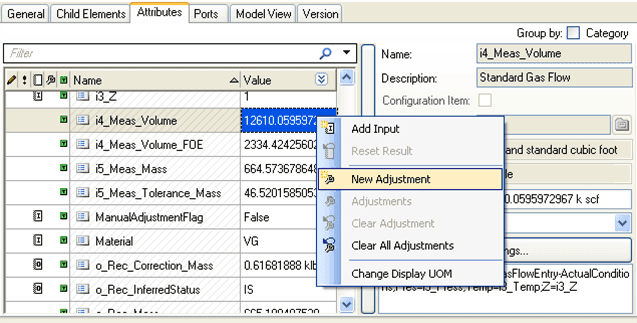
In our example, we have selected the i4_Meas_Volume Attribute for adjustment.
Type the new value you want to assign to the attribute.
Click Enter.
The new value is entered and a adjustment Comment window opens.

(Optional) In the Comment box, type a reason for the adjustment.
Click OK to save the adjustment and close the Comment window.
Notice that the value now shows a marker
 indicating that it has been adjusted.
To view the adjustment(s), right-click on the Attribute and click on Adjustments.
An Adjustments window opens, displaying all adjustment made to the attribute.
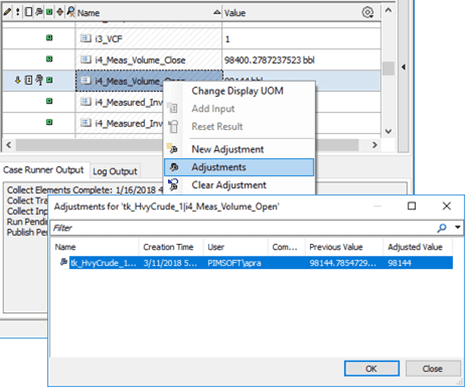
Click OK to close the Adjustments window.